
Recording sales from your invoice booklet
How to record the invoices you issue from your registered booklet in PXL Books: numbers in sequence, branches, cash sales and cancelled numbers.
On this page
You issue invoices to your customers from your registered booklet. PXL Books records each one, by its number, so that your books, your VAT or percentage tax and your receivables come from the same invoices your customers hold. Since the Ease of Paying Taxes (EOPT) Act, the invoice is the primary document for sales of both goods and services, so one record per invoice covers both.
PXL Books records the invoices you issued. What it prints for a sale is for internal use only, a copy for your own files; the invoice your customer gets is the one from your booklet.
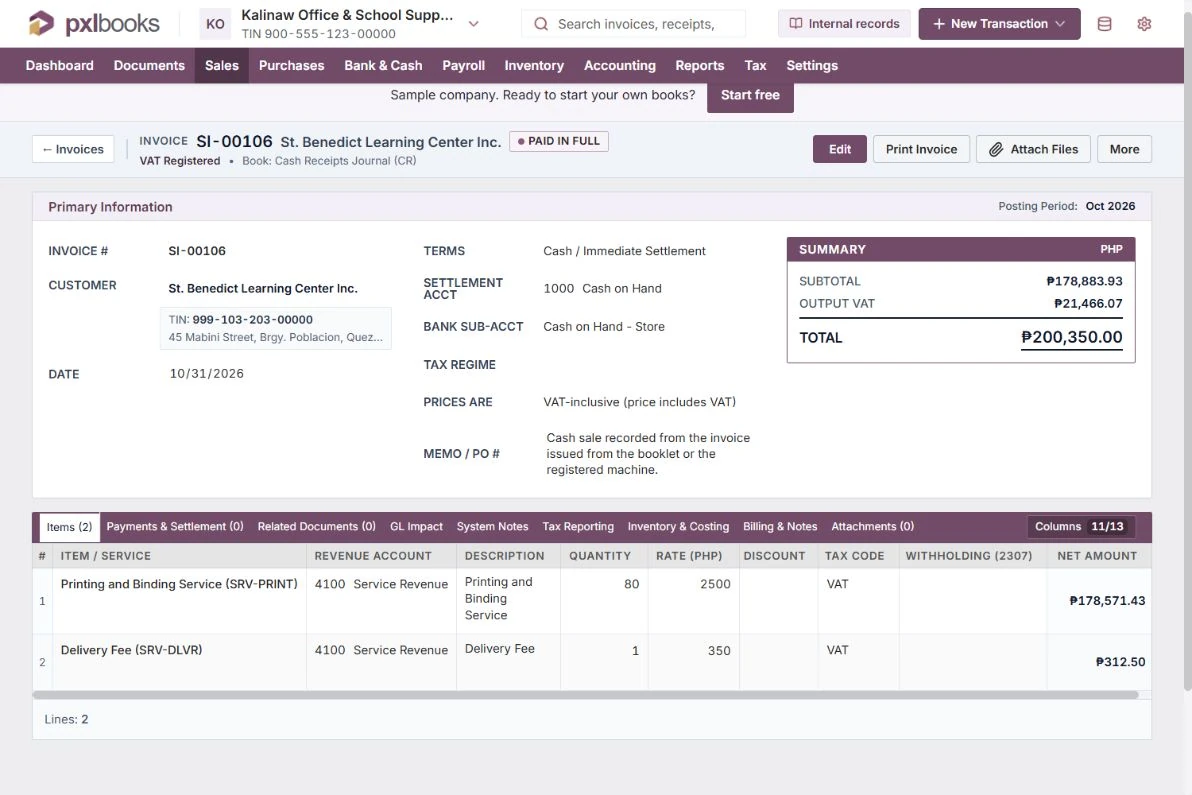
Product screenshot: demo sample records only.
Before you start
- Register your booklet in PXL Books. In Settings → Company → Company & Tax Profile → Booklets, add the booklet with its series (for example, 0001 to 0500), the date of its Authority to Print and the branch that uses it. PXL Books then knows which numbers are yours and suggests the next one.
- Set your branches if you have them. Each branch can have its own invoice series, so the Marikina branch's invoice 0001 is not confused with the head office's invoice 0001.
- Set the tax treatment of your business: VAT or non-VAT, and for non-VAT individuals, whether you chose the 8% income tax option. This decides how each sale is taxed.
Recording an invoice
- Open Sales → Sales Invoices → New.
- Customer. Pick the customer. For cash sales to people whose names you do not keep, use Walk-in Customer.
- Invoice number and date. Enter the number printed on the booklet and the date on the invoice. PXL Books suggests the next number in the series. It warns you when a number is already recorded, falls outside your registered booklets, skips numbers, or when a booklet is near its end.
- Lines. Enter each item or service, the quantity and the price, as written on the invoice. Pick an item from your list and its price, account and tax code fill in.
- Tax code. VAT, zero-rated, VAT-exempt or non-VAT, as stated on the invoice.
- Cash or on account. If the customer paid at once, mark it as a cash sale and pick where the money went (for example, Cash on Hand). Otherwise it stays as a receivable until you record the collection.
- Save. Check the Summary box, which shows the subtotal, the VAT and the total, against the invoice.
Once the required posting or approval flow completes, PXL Books writes the journal entry and puts the sale in the Sales Journal (on account) or the Cash Receipts Journal (cash), and in your VAT or percentage tax figures. See How one record becomes your books, tax and FS.
Cancelled and spoiled invoices
Mistakes happen. If an invoice was cancelled before it was given to the customer, keep the original copies in the booklet as your evidence, and record the number in PXL Books as cancelled. It then appears in your books as one CANCELLED line, so the sequence has no gap. If a recorded sale is voided on a later day, the books show both the sale and its reversal, each on its own date.
Recording many invoices at once
If you are catching up on a month of booklet invoices:
- Record them in number order. Gaps and duplicates are easier to see that way.
- Keep the booklet open beside you and check each total against the Summary box.
- When you finish, choose Download the N not recorded from Settings → Company → Company & Tax Profile → Booklets. It lists every number in your booklets with nothing recorded or voided under it, by branch and booklet.
What changed under EOPT
The EOPT Act (Republic Act No. 11976) and its invoicing regulations (Revenue Regulations No. 7-2024) made the invoice the primary document for all sales, of goods and of services. The official receipt is now a supplementary document. In PXL Books, every sale is recorded as a Sales Invoice, whether you sell goods or services. For the transition rules on unused official receipts and old booklets, see EOPT in plain words.
Common mistakes
- Recording the total only. Record the lines as written on the invoice. The VAT and the sales by item depend on them.
- Using the wrong branch's series. Check the branch before you save when you keep books per branch.
- Recording a collection as a new sale. A customer paying an earlier invoice is a collection (Sales → Collections), not a new invoice.
- Skipping cancelled numbers. Record them as cancelled, so the books show the whole series.
Try it
In the demo company, open Sales → Sales Invoices → New and record a sale. Then open the Sales Journal or the Cash Receipts Journal for that month.
Check the source total
An ordinary VAT-inclusive source invoice of ₱11,200 has ₱10,000 sales and ₱1,200 output VAT. Check the posted Summary and GL Impact against the source. A draft or staff submission has not posted until the required posting or approval flow finishes.
Questions
Should I use the printed booklet number?
Yes. Record the issued invoice’s actual number, series, date and branch.
What if a number is missing?
Use the booklet gap list and investigate physical copies. Do not invent a sale to fill a gap.
Is a later customer payment another sale?
No. Record it under Sales → Collections against the earlier invoice.
Can the app print a customer invoice instead?
Its clean transaction print is an internal office file copy; use your authorized invoice for the customer.
Related
- EOPT in plain words
- Books of accounts a small business keeps
- How one record becomes your books, tax and FS
Last checked against the app: November 20, 2026. Tax rules: review with your accountant.