
Books of accounts
Read, copy, and prepare books under the mode set for your business.
On this page
- General Journal and General Ledger with T-accounts
- Sales and Purchase Journals
- Cash Receipts and Cash Disbursements Journals
- VAT subsidiary sales and purchase journals
- Invoice booklet and ATP register
- Unrecorded booklet numbers and Excel export
- Cancelled and voided invoice number tracking
- Clean Excel copy for handwritten books
- Printed and loose-leaf PDF books
- Computerized books soft-copy ZIP and checksums
- Review before you rely on the result
- Related
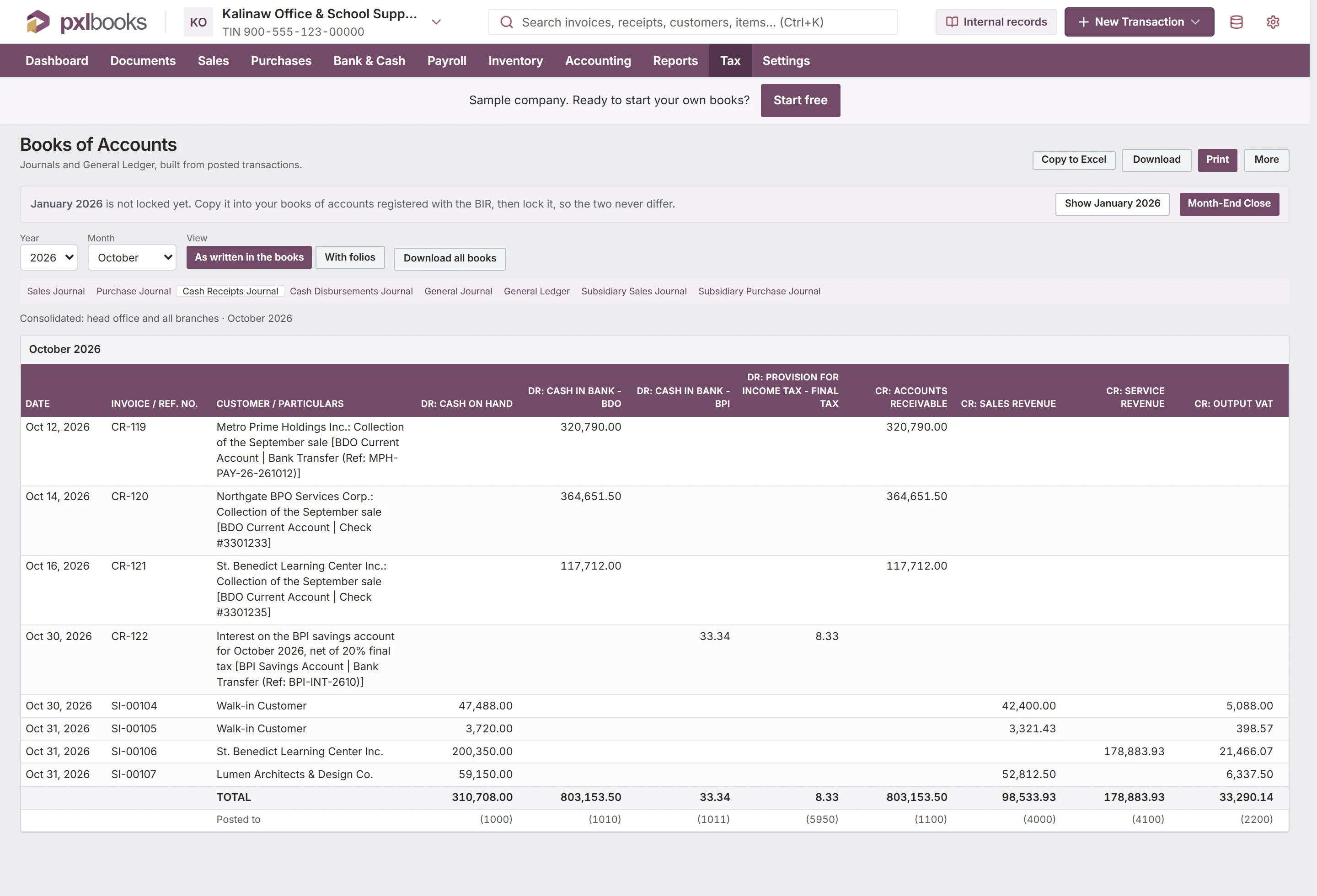
Screenshot: demo sample records only.
This guide covers 10 features. All three planned plans include these features where applicable. Turn on the modules you need in Settings; access depends on your role and the business’s setup. See all 89 features and Pricing & Complete Features.
General Journal and General Ledger with T-accounts
In plain English: Read posted entries chronologically and by account, including T-account views.
Where to find it: Books of Accounts.
How to use it: Choose the General Journal or General Ledger, the period, and any branch filter. Open the account or source entry to follow its debits, credits, and running balance.
Sales and Purchase Journals
In plain English: Read sales and purchases in the journals populated by posted records.
Where to find it: Books of Accounts.
How to use it: Choose the Sales Journal or Purchase Journal and the month. Review the columns and totals against the underlying invoices or bills before preparing your books.
Cash Receipts and Cash Disbursements Journals
In plain English: Keep the receipt and payment sides of the books in their own journals.
Where to find it: Books of Accounts.
How to use it: Select the cash journal, month, and branch. Follow a voucher back to its source and review the debit and credit totals for the period.
VAT subsidiary sales and purchase journals
In plain English: Read supporting VAT sales and purchase details alongside the main books.
Where to find it: Books of Accounts.
How to use it: For a VAT business, choose the subsidiary journal and period. Review the customer or supplier details and tax classifications that support the VAT records.
Invoice booklet and ATP register
In plain English: Keep serial ranges, booklet details, and authority-to-print information by branch.
Where to find it: Settings → Company → Company & Tax Profile → Booklets.
How to use it: Register each booklet and its number range, then select the relevant series when recording an invoice. Review warnings for numbers outside a range or used out of sequence.
Unrecorded booklet numbers and Excel export
In plain English: Find invoice numbers in registered ranges that have not been recorded.
Where to find it: Settings → Company → Company & Tax Profile → Booklets.
How to use it: Open the unrecorded-number list for the booklet and check it against the physical copies. Export the list to Excel to follow up; a gap needs investigation, not an invented sale.
Cancelled and voided invoice number tracking
In plain English: Keep cancelled numbers visible in the invoice sequence and the relevant books.
Where to find it: Sales Invoices and Booklets.
How to use it: Record the cancelled or voided number with its reason. Review the sequence against the booklet so an unused or cancelled number is distinguishable from a missing record.
Clean Excel copy for handwritten books
In plain English: Copy the journal’s rows and columns into Excel as a guide for writing books.
Where to find it: Books of Accounts → Copy to Excel.
How to use it: Choose the book and period, review the rows, and copy them into your spreadsheet. The copy is a preparation aid; completing the registered handwritten books remains with the business.
Printed and loose-leaf PDF books
In plain English: Prepare book printouts using the books mode and registration details set for the business.
Where to find it: Tax → Books of Accounts, and the Books tab in Settings.
How to use it: Set the applicable mode and details first, then review and print the books or prepare the PDF. Loose-leaf use depends on the business’s own permit and required process.
Computerized books soft-copy ZIP and checksums
In plain English: Prepare the registered computerized books package with a manifest and SHA-256 file fingerprints.
Where to find it: BIR Reports → computerized books soft copy.
How to use it: Set the business’s computerized-books registration details and lock the year before preparing the package. Review its books and manifest; downloading a ZIP does not register the business or submit it to the BIR.
Review before you rely on the result
Check the source documents, settings, reporting period, and any required approval. Tax returns and financial statements need review by you or your accountant. PXL Books prepares records and supporting files; it does not file or pay taxes.
Related
Last checked: November 20, 2026.